How to use setlists
Setlists group songs together so you can organize your repertoire and play through it in order.
Create a setlist
- From the upload page, you can create a new setlist from a whole batch of songs, with an optional cover image.
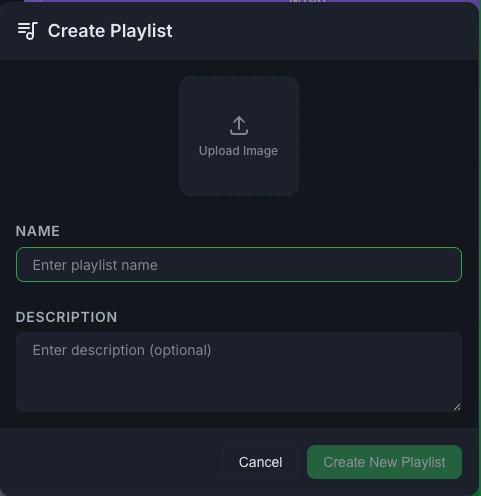
- From the Setlists page, create a setlist and give it a name, description, and cover.
Manage a setlist
Under the setlist's name you see how many songs it has and its total running time, for example "5 songs • 32 min".
The buttons below the cover let you:
- Play All with the round play button, then move between songs with previous and next. You can also start from any song by clicking it.
- Add songs with the + button (search when adding). To remove a song, point at it and click the trash icon.
- Share the setlist (Pro). See How to share with friends.
- Open the ⋯ menu to Edit the name, description, and cover, or to delete the setlist.
Change the order of the songs
- Click Reorder at the right of the setlist.
- Drag the songs by their handles into the new order.
- Click Save to keep the new order, or Cancel to leave it as it was.
Sort your setlists
On the Setlists page, use the sort button at the top to sort by date created or by name, and to switch between newest and oldest first.
The sidebar shows your four most recent setlists. Click See all under them to open the Setlists page.