How to edit tempo with the editing tool
CueWee’s tempo tool lets you adjust a song’s BPM, create speed-up/slow-down curves, and change the time signature at any point.
When to use it
- Adapt the song’s original BPM for your rehearsal
- Create transitions with smooth acceleration or deceleration (rallentando, accelerando)
- Adjust passages with free tempo (e.g., a solemn intro)
- Change the time signature (4/4 → 3/4) on a bridge
How to open the tempo editor
There are two ways:
- From the tempo control at the top of the player: click where the BPM is shown (for example “120 BPM”).
- From the toolbar above the tracks: click the Tempo tool button (🕐).
When activated, the tempo curve view appears over the timeline, showing the BPM throughout the song.
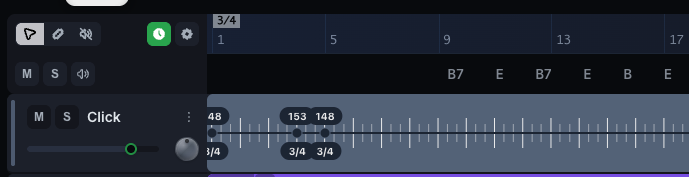
Add a breakpoint
A breakpoint is a point on the timeline where the BPM changes.
- Click the tempo curve timeline at the position where you want to change tempo
- A marker appears on the curve
Edit a breakpoint
Open the breakpoint — on desktop: right-click it. On mobile: press and hold it. A menu opens with:
- BPM — the field where you set the BPM at that point
- Time sig — the field where you change the time signature (4/4, 3/4, 6/8, and so on)
- Interpolate to next — makes the tempo change little by little up to the next breakpoint, instead of jumping
- Delete breakpoint — removes it
A sudden change or a gradual one
- Off: the BPM changes abruptly at the breakpoint.
- On: the BPM moves gradually from the current value to the next breakpoint’s BPM, creating an accelerando or a rallentando.
Hear it as you edit
Play the song while you edit — CueWee applies the changes right away, so you hear the result immediately. The BPM currently in use is shown at the top of the player.
Reset the tempo
To return to the original tempo CueWee detected:
- Open the Tools ⚙ menu in the toolbar
- Click Reset tracks
This also resets volume, pan, and your other player adjustments. To remove only certain breakpoints, open each one and click Delete breakpoint.
Tips
- For ballads: add a breakpoint at the beginning of the song with a slightly lower BPM for a more “breathing” feel.
- For outros and intros: use 2 breakpoints with Interpolate to next for a smooth rallentando in the final bars.
- For tempo changes within the song: use the auto-detected tempo as your baseline and adjust selectively.
Limitations
- Changing the tempo during playback needs a browser that supports it. On very old browsers you may see “Pitch/tempo not supported in this browser,” and the control stays disabled.
- Tempo changes affect playback, and they also affect the export if you check “Apply mixer settings” in the export window.