How to route audio to your interface
The desktop app for macOS and Windows can send each track to its own output on a multi output audio interface. Click to the drummer's in ear, guide vocal to the singer, band mix to the front of house, all from the same song.
This is a desktop only feature. The web app and the mobile apps always play a stereo mix through the system output.
What you need
- The CueWee desktop app for macOS or Windows. Download it at www.cuewee.app/download.
- An audio interface with more than two outputs, connected and recognized by the operating system (RME, Focusrite, MOTU, Behringer, any interface your system already sees).
- A song open in the player, with its tracks loaded.
1. Pick your output device
The device picker lives in two places, and both change the same setting:
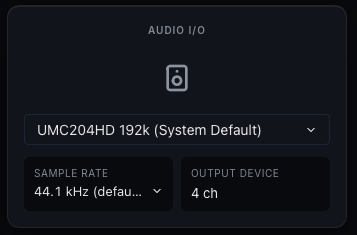
- In the library. The Audio I/O card sits in the right column of the desktop library. It has the output device, the sample rate, and a readout of how many outputs the device has.
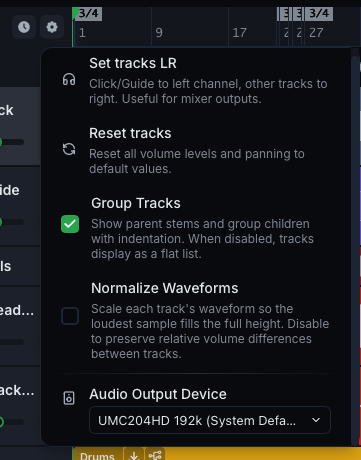
- In the player. Open the Tools ⚙ menu in the toolbar and use the Audio Output Device dropdown at the bottom.
Pick your interface, even when it already appears as the System Default. The card then shows the channel count: Stereo Output for a normal two channel device, or something like 4 ch for a multi output interface.
If the channel count says Stereo Output, there is nothing to route, and the per track picker only offers channels 1 and 2.
In the player, the same picker sits at the bottom of the Tools ⚙ menu:
2. Set the sample rate
The Sample rate dropdown lists only the rates your interface reports, from 44.1 kHz upward.
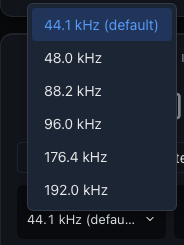
CueWee renders at 44.1 kHz, so that rate is tagged default and is the one that skips any conversion. Picking another rate is still a valid choice, and plenty of pro interfaces are locked to 48 kHz. The desktop app converts on the way out, which costs a few milliseconds of extra delay and a little CPU.
On Windows, every app plays through the shared audio engine, which resamples everything to the rate configured for the device. CueWee only offers rates up to that one. To work at a different rate, change it in Sound settings, then the device's Properties, then Advanced, and CueWee follows it.
3. Route each track
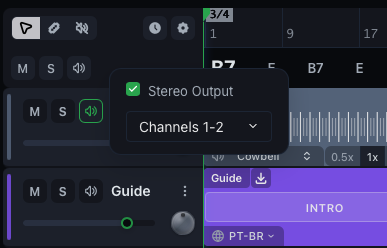
With a multi output device selected, every track row in the player gets a small speaker icon, right after the M and S buttons.
- Hover the speaker icon. A small panel opens.
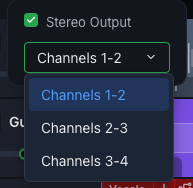
- Leave Stereo Output checked to send the track to a pair of channels, or uncheck it to send it to a single channel.
- Pick the destination in the dropdown: Channels 1-2, Channels 3-4, and so on for stereo, or Channel 1, Channel 2 for mono.
- The change applies immediately. There is no Apply button and nothing to save by hand.
Tracks with no route set play on Channels 1-2, the device's main output.
Stereo pairs overlap
The stereo list is built from every consecutive pair the device offers, so Channels 1-2, Channels 2-3, Channels 3-4 are all valid on a four output interface. That is intentional, and it means two tracks can share a channel while sitting on different pairs.
Mono sums the track
A mono route sums the left and right sides of the track into the single channel you picked. Because there is nowhere left to pan, the pan dial disappears from that track row while the route is mono. Check Stereo Output again and pan comes back.
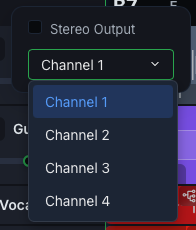
Mono is what you want for in ear feeds: one click on channel 3, one guide vocal on channel 4, and the console splits them however each musician needs.
Click and guide route too
The Click and Guide rows have the same speaker icon and the same options as the instrument stems. This is the whole point of routing on stage, the click never reaching the house.
Group rows have no picker
When Group tracks is on, the group header row does not play audio by itself, so it has no route picker. Route the individual tracks inside the group.
4. Several tracks, one output
Point two or more tracks at the same destination and they mix together into that output. Bass on Channels 3-4 and keys on Channels 3-4 arrive at the console as one stereo feed, with each track's own volume and mute still in effect.
Where your routing is saved
- Routes are saved per song, in your account. Open the same song on another computer and the routing comes with it.
- The device and the sample rate are saved on that computer, not in your account, because the interface on the other machine is a different one.
- A route that does not fit the current device falls back to Channels 1-2. Take a song routed for an 8 output interface to a laptop with only built in speakers and everything still plays, on the main output. The saved routing is not erased, and it comes back as soon as the interface is connected again.
- Reset tracks clears routing. The Reset tracks item in the Tools ⚙ menu restores volume, pan, mute, and solo, and it also drops every route back to Channels 1-2.
Example setups
Band on in ears, four output interface
| Track | Route |
|---|---|
| Click | Channel 3, mono |
| Guide | Channel 4, mono |
| All instrument stems | Channels 1-2, stereo |
Drummer hears only the click, the house hears the band
| Track | Route |
|---|---|
| Click | Channel 3, mono |
| Drums, bass, keys, guitars | Channels 1-2, stereo |
Stems split for the front of house engineer, eight output interface
| Track | Route |
|---|---|
| Click | Channel 7, mono |
| Guide | Channel 8, mono |
| Drums | Channels 1-2 |
| Bass | Channels 3-4 |
| Keys and guitars | Channels 5-6 |
No interface at hand? The Set tracks LR item in the Tools ⚙ menu sends click and guide to the left channel and everything else to the right, so a plain stereo output can still feed a splitter.
If something is not right
The speaker icon is not on the track rows. Routing is desktop only, and it appears only when the selected device has more than two outputs. Check the device in the Audio I/O card first.
My interface is not in the list. Connect it, then open the Tools ⚙ menu again. The list is read fresh every time that menu opens.
The pan dial vanished on one track. That track is on a mono route. Check Stereo Output in its route picker.
Everything came back on channels 1-2. The current device does not have the channels the song was routed to. Select the right interface again and the routing returns.
A rate I used before is gone from the list. The rate belongs to the device. Another interface, or the same one at a different Windows setting, offers a different list.