How to create your custom guide
CueWee automatically generates a voice guide for every song, announcing sections like intro, verse, chorus, and bridge. But you can create custom cues with any text — in English, Spanish, or Portuguese — spoken by one of CueWee’s voices.
Want to change the voice of the automatic Guide track instead? See How to change the automatic guide voice.
When to use a custom cue
- Announce a specific break in the song (“Drum solo,” “Modulation”)
- Give instructions to the band (“Heads up, drop coming,” “Key up”)
- Mark important moments for in-ears (“Camera 2,” “Light cue”)
- Create a more natural guide using your band’s expressions
Step by step
1. Open the section menu
In the player, open the segment where you want to add the cue — on desktop: right-click it. On mobile: press and hold it.
2. Click "New Custom Guide"
In the menu, under Cues, click New Custom Guide.
The New custom guide window opens.
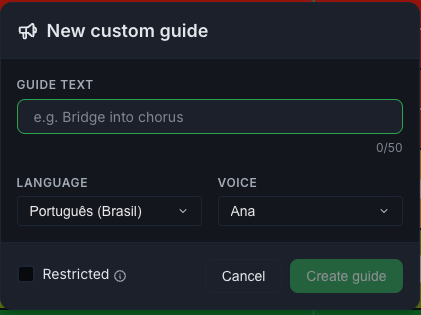
3. Type the text
In the text field, write what the voice should say.
- Limit: 50 characters
- A counter shows how many characters you’ve used
- Short phrases work best — the voice has limited time to speak before the section begins
The field shows an example to get you started: “e.g. Bridge into chorus.”
4. Choose the language
In the Language list, choose:
- Português (Brasil)
- English
- Español
5. Choose the voice
For each language, several voices are available in the Voice list. Try a few to find one that fits your song — firmer voices for rock, softer voices for ballads.
6. (Optional) Restricted
Check Restricted if you want the cue to stay in this song only.
- Unchecked (default): the cue is saved to your cue library and can be reused on other songs.
- Checked: the cue is specific to this song and won’t appear on others.
💡 Use shared cues for recurring phrases (e.g., “Chorus”). Use song-specific cues for something unique to that song (e.g., “John’s solo”).
7. Click "Create guide"
CueWee records your phrase with the voice you picked and adds it to the section. You’ll see Synthesizing… while it works (usually a few seconds).
When it finishes, the window closes and the cue appears in the section’s list.
Reusing cues you’ve created
Cues you’ve marked as reusable show up under My guides when you open the section menu of any other section, in the same song or in other songs.
Just pick the cue from the list to add it to the current section — no need to recreate it.
Common errors
- Empty text — the Create guide button stays disabled until you type something.
- Text too long — the limit is 50 characters. Shorten the phrase.
- It failed — an error message appears. Try again; if it keeps failing, rewrite the phrase with simpler words.