How to export songs
CueWee’s export tool produces audio files ready to use on your gear — DAW, playback app, in-ear monitor, or a regular player. You choose which tracks, in which format, and how they get mixed together.
Who can export
- The song owner (always)
- Shared users if the owner allows export
- The song must have finished processing
You can export the same song as many times as you want, in different formats and configurations.
Step by step
1. Open the song in the player
Go to the song you want to export.
2. Click "Export Song"
The button sits at the top of the player. The Export Song window opens, split into two panels.
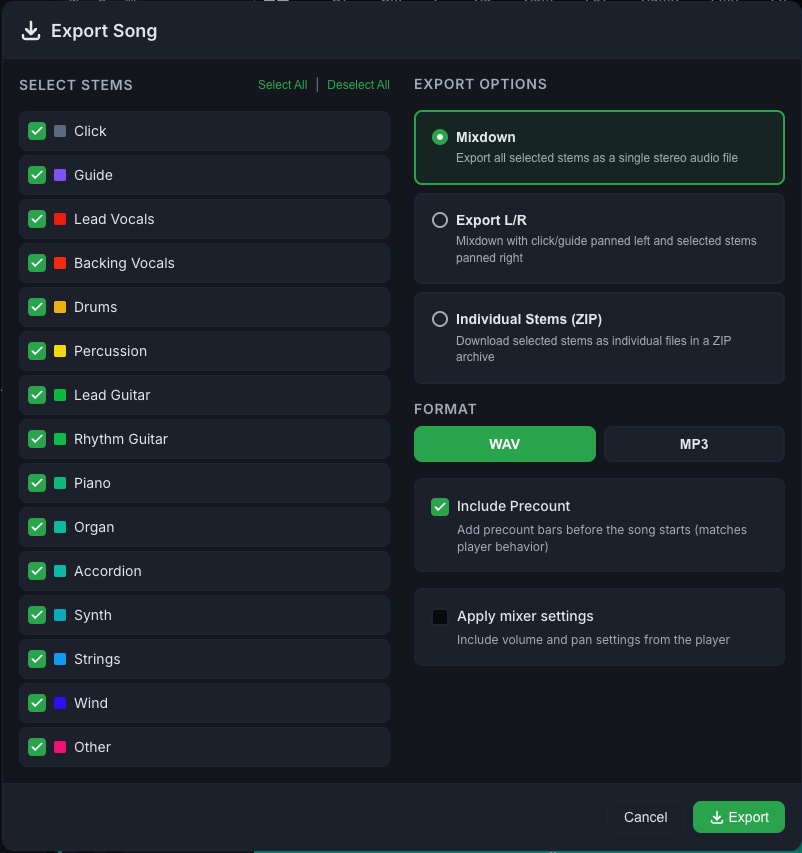
3. Left panel — Select Stems
A list of all the song’s tracks with checkboxes:
- Check/uncheck each track individually
- Use Select All or Deselect All at the top
- Each track shows a colored square and the name (e.g., Vocals, Drums, Click, Guide)
💡 To produce in-ears for a specific musician, select Click + Guide + the relevant instruments for that position.
4. Right panel — Export Mode
Choose how the tracks will be combined:
Mixdown
“Export all selected stems as a single stereo audio file”
Creates a single stereo file with all the selected tracks mixed together. Ideal for simple playback or reference.
L/R Export
“Mix with click/guide panned left and selected tracks panned right”
Creates a stereo file where:
- Left (L): click + guide
- Right (R): selected instruments
Perfect for in-ear systems that split L/R: the drummer hears the click in their left earpiece and the band in their right, for example.
Individual Stems (ZIP)
“Download selected stems as individual files in a ZIP archive”
Each track becomes a separate file inside a ZIP. Use this when you’ll import into your DAW or a playback app that supports multitrack.
5. Format
- WAV — no quality loss, uncompressed. Larger file, best quality. Use for DAW and production.
- MP3 — compressed, smaller size. Use for quick sharing over WhatsApp/email.
6. Additional options
Include Precount
“Add precount bars before the song starts”
Includes the pre-count bars you set up in the player in the export. Useful for rehearsing the entrance to a song.
Apply mixer settings
“Include volume and pan settings from the player”
Applies the volume, pan, mute, and solo settings you made. If unchecked, the export uses the default levels (volume 100%, pan center) — ignoring your adjustments.
7. Click "Export"
The progress bar shows the steps:
- Preparing export
- Processing tracks
- Mixing and encoding
- Uploading
When it finishes, the download starts automatically.
⚠️ If you close the page during export, it may be cancelled. Wait for the download to start.
Common use cases
For the whole band (simple in-ear system)
- Mode: Export L/R
- Tracks: all
- Format: WAV
- Include pre-count: ✓
For the drummer
- Mode: Mixdown
- Tracks: Click + Drums + Guide + Bass
- Format: WAV
For a playback app (Ableton, Playback Rehearsal, etc.)
- Mode: Individual Stems (ZIP)
- Tracks: all
- Format: WAV
To send a quick reference
- Mode: Mixdown
- Tracks: all (or just vocals + backing)
- Format: MP3
Common errors
- "Export" button disabled — you need to select at least one track.
- Download doesn’t start — check that your browser isn’t blocking downloads. Try again.
- File too big — pick MP3 instead of WAV if you don’t need the very best quality.