How to generate synced lyrics
CueWee can transcribe a song's vocals into time aligned lyrics that scroll in sync with playback, and export them as subtitle files.
Before you start
- The song must be processed and have vocals. If there are no vocals, CueWee shows "This song has no vocals to transcribe."
- The song owner needs an active subscription to generate lyrics.
Generate the lyrics
- Open the song in the player.
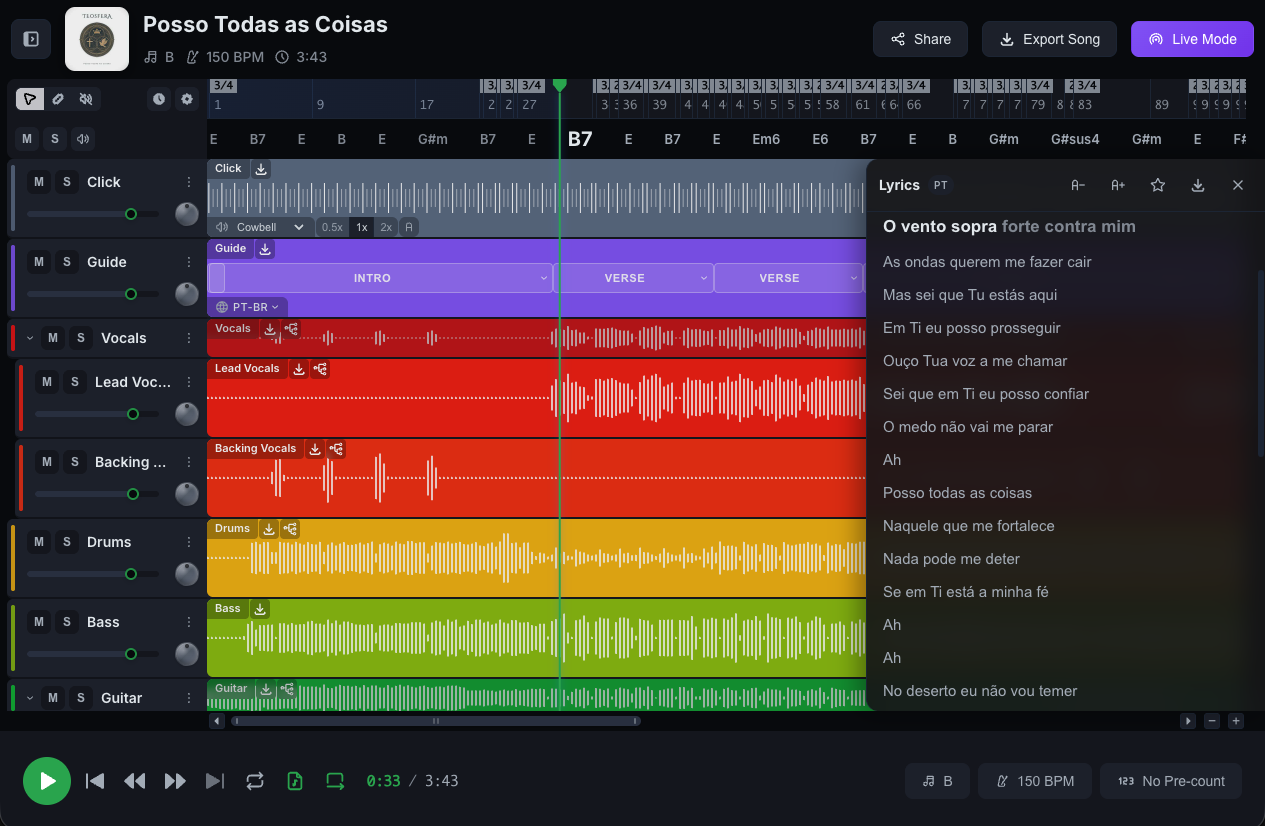
- Open the Lyrics panel.
- Click Generate. CueWee listens to the vocals and aligns the words. This takes a moment, and you will see playful status messages while it works.
- When it finishes, the lyrics appear and highlight word by word as the song plays.
Adjust the view
- Show spoken parts: turn it on or off to include or hide spoken sections like intros, exhortations, and ad libs.
- Text size: increase or decrease the lyrics text size.
- Rate the lyrics: rate the transcription quality and the sync timing to help us improve.
Download the lyrics
Click Download lyrics and choose a format:
- LRC: synced lyrics for most media players and karaoke apps.
- SRT: subtitles for video players and editors.
- ASS: styled subtitles with precise timing.
If something goes wrong
- "This song has no vocals to transcribe": the song has no vocal stem to work from.
- "Lyrics generation failed": click Try again. If it keeps failing, write to contact@cuewee.app.
- Owner needs a subscription: whoever owns the song must have an active subscription to generate lyrics.