How to import your own tracks (Pro)
If your song is already separated, for example exported from your DAW or from another separation tool, you don't need CueWee to separate it again. Import stems mode takes those files, treats them as one song, and builds everything around them: the mixdown, the beat grid, the sections, the chords, the click track, and the voice guide.
When to use it
- You mixed and exported the stems yourself and want them in CueWee for rehearsals or on stage
- You bought or were given multitrack files for a song
- You already separated the song somewhere else and only want CueWee's click, guides, and player
- Your tracks already have their own click and cue guides recorded in them
Who can use it
- Pro plan only
- Subscription payment must be up to date
💡 On the Starter plan or Trial you can still open the mode and read what it does, but attaching files is locked. A "Importing your own tracks is a Pro feature" panel appears with a link to the Pro plan. See How to subscribe to a plan.
Before you start
- Accepted formats: MP3, WAV, M4A, FLAC, OGG, AAC
- Per file limits: 15 minutes in length and 150 MB in size
- Between 2 and 24 tracks per song. One file is a song, not a set of stems, so two is the minimum
- All the files you attach become one song. To import several songs, do one at a time
- Imported tracks count against your storage allowance like any other song
Step by step
1. Open the upload page and switch mode
At the top of the app, click Upload Song, then pick the Import stems tab. The other tab, Separate stems, is the normal flow where CueWee separates a full song for you.
2. Drop the tracks
Drag every track of the song onto the "Drop the tracks of one song" area, or click Choose Audio Files and select them all at once. You can add more later with Add more tracks.
CueWee reads each file and shows its size and duration.
3. Check the instrument on each track
CueWee guesses the instrument from the filename and uses it for the track's color, icon, and position in the player. Open the dropdown on any row to correct it.
A track can say Not set, which only means the name was not recognized. The track still plays normally, it just gets a neutral color. Two tracks can be the same instrument, for example two pianos or two pads, and that is fine.
Names that read well for the guesser:
MySong - Vocals.wav,MySong - Bass.wav,MySong - Drums.wav- A track number in front is fine:
01_Vocals.wav - The most specific name wins, so
Lead Vocalbecomes lead vocal rather than plain vocals, andAcoustic Guitarbecomes acoustic guitar rather than plain guitar - Accents are fine:
Violão.wavis recognized
Recognized names include vocals (lead, backing), drums and its pieces (kick, snare, toms, hi-hat, cymbals), percussion and loops, bass, guitars (acoustic, electric), piano and keys, organ, synth and pads, strings, winds and brass, and crowd.
4. Name the song
CueWee fills the title from the part of the filenames your tracks share, so "MySong - Vocals.wav" plus "MySong - Drums.wav" becomes "MySong". Edit it freely; once you type, CueWee stops re-deriving it as you add files.
5. Choose the options
Compress to save space. Your tracks are re-encoded so they take about 5 times less space, keeping the quality. Useful for WAV sets, which are large. Leave it off to keep your files exactly as you uploaded them.
Skip beats and guide processing. Turn this on when your tracks already carry their own click and cue guides. CueWee then only stores the tracks, and it will not detect the beat grid, the sections, or the chords, so its own click and guide tracks won't appear in the player. Compression needs cloud processing, so it is unavailable while this is on.
💡 Leave both off if you are not sure. That gives you the full result: CueWee's click, voice guide, sections, and chords on top of your own tracks.
6. Create the song
Click Create song. The tracks upload together, the button shows "Uploading X of Y", and the song is created only after every track lands, so a failed upload never leaves a half song in your library. When it's done, CueWee takes you straight to the player.
If some tracks fail, you go back to the list with a message and can try again.
Warnings you might see
- "This looks like a full mix". One of your files is named like a mixdown or master. CueWee builds its own mixdown by summing your tracks, so leaving a full mix in the set makes the song much louder than it should be, and muting the other tracks barely changes what you hear. Remove it.
- "These tracks are not all the same length". That's fine when one track just ends early, but it can also mean one file is from a different take or was trimmed. Worth a check before you create the song.
Both are warnings, not blocks. You can create the song anyway.
Add a single track to a song you already have
You don't have to import a whole song to bring in one file. Any finished song of yours accepts extra tracks straight from the player, so you can add a cue track, a keys part you recorded yourself, a rehearsal count-in, or a pad that only your band uses.
Nothing is reprocessed. The song keeps its mixdown, beat grid, sections, chords, click, and voice guide exactly as they are, and the new track simply joins the list.
Step by step
Open the song in the player.
Make sure the track controls are visible. If you only see the waveforms, use the toolbar button that shows the track panel.
Scroll to the bottom of the track list, past the last track, and click + Add stem.
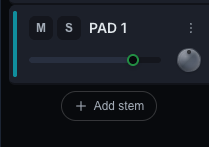
Pick the file. That's the whole confirmation, there is no dialog: the upload starts immediately.
The track appears in the list right away with an upload indicator. On the web it already plays from the file on your computer while it uploads. In the mobile and desktop apps it stays silent until the upload finishes.
When it's done you get a "your track added" message, and the track is part of the song from then on, on every device.
You can pick another file while the first is still uploading. Each one is independent.
Good to know
- Pro plan only. On Starter or Trial the button shows with a padlock and takes you to the plans page.
- Only your own songs. The button doesn't appear on songs shared with you, and only the owner can add tracks, because a new track changes what everyone the song is shared with hears.
- Only after processing finishes. Wait for the song to complete before adding to it.
- Same file rules: MP3, WAV, M4A, FLAC, OGG, AAC, up to 150 MB.
- CueWee guesses the instrument from the filename, same as in import mode, so a file named
Keys.wavlands with the keys color and icon. - Keep the page open while it uploads. If you try to leave, CueWee warns you that the upload stops and the track won't be added.
- To undo it, delete the track from its ⋮ menu in the track row.
- Added tracks count against your storage allowance. If you are out of space, CueWee says so before uploading anything.
Common errors
- "Unsupported format": convert the file to one of the accepted formats.
- "File too large": the file is over 150 MB. Compress it, or export it as MP3 or AAC instead of WAV.
- "Song too long": the file is over 15 minutes.
- "You can upload up to 24 tracks for one song": submit the song with fewer tracks, or bounce some of them together first.
- Out of space: free some space in your library, or turn on Compress to save space. See Plans and usage.
- Some tracks failed to upload: click Create song again. If it keeps failing, write to contact@cuewee.app.