How to process a new song
Learn how to send a song to CueWee for processing, separate the instruments, and generate the click track and voice guide automatically.
Before you start
- You need to be signed in and have your email verified.
- On the free trial you have 5 songs in total. On a paid plan you have a monthly processing limit, up to 200 songs on Starter and up to 500 on Pro, subject to the Fair Use Policy.
- Accepted formats: MP3, WAV, M4A, FLAC, OGG, AAC.
- Per file limits: 15 minutes in length and 150 MB in size.
- You can upload up to 20 songs at once in a single batch, which is also how many can be waiting at the same time. If you attach more than 20 files, only the first 20 are added. As they finish, you can add more.
💡 Tip: start from a file that is not maxed out or distorted. When the recording still has a little room left before its loudest point, the separation comes out cleaner.
Step by step
1. Open the upload page
At the top of the app, click Upload Song (or open studio.cuewee.app/upload directly).
2. Upload the audio file
- On desktop: drag the file onto the "Drop your audio file here" area.
- Alternative: click Choose Audio File and pick it from your computer.
- On mobile: use the "Pick a song from your device" button.
CueWee analyzes the file and shows:
- File name
- Cover art, if the file has one, or a disc icon
- Size, duration, detected key, and BPM
If you want to swap the file, click the remove button and choose another. To upload several songs, add them all and, if you like, create a new playlist from the whole batch.
3. Choose the processing mode
You decide whether CueWee detects the instruments on its own or whether you pick them manually.
Auto mode (recommended)
Auto mode is on by default. CueWee analyzes the song and separates the instruments it detects: vocals, drums, bass, guitars, piano, and, on Pro, any other instrument that is present.
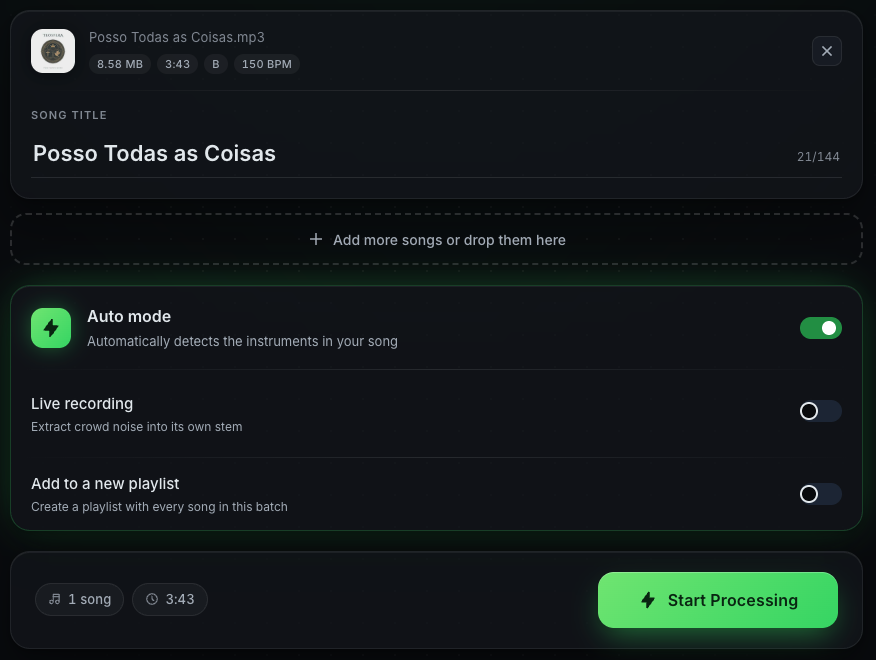
Use Auto mode when:
- You are not sure which instruments are in the song
- You want the most complete result possible
- You are processing a variety of songs (studio, live, with or without vocals)
Live Recording (Pro): if the song is a live recording, enable the Live Recording option so CueWee extracts crowd noise into its own stem.
Manual Mode
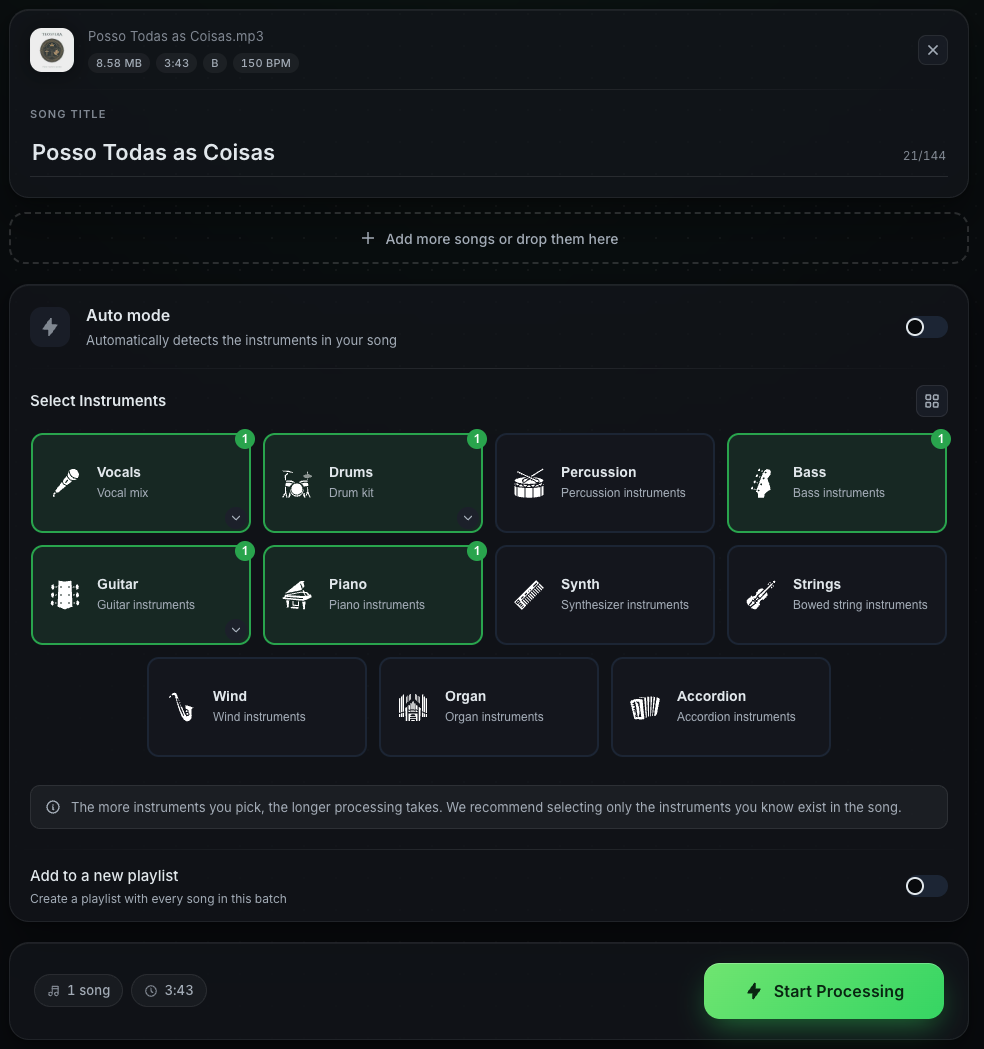
Turn off Auto mode to choose exactly which instruments you want to separate.
The instrument list appears organized by category:
- Vocals (lead, backing, male and female, choir, SATB choir, Crowd)
- Drums (full kit, or separate tracks)
- Bass
- Guitars (acoustic and electric, lead and rhythm)
- Piano (acoustic, digital)
- Others (synthesizer, winds, strings, percussion)
Removing the crowd (Pro): expand the Vocals group and check Crowd to pull audience noise into its own stem. It is additive, so it stacks on top of whichever vocal model you already selected. This is the Manual Mode equivalent of the Live Recording switch in Auto mode.
Use Manual Mode when:
- You know certain instruments are not in the song (for example, an a cappella song with no instruments)
- You want to simplify the session and keep only what matters
- You want to save processing time
💡 On the Starter plan, advanced instruments appear locked. Upgrade to Pro to unlock them.
Compact vs Expanded
Use the view button (top corner of the instrument selector) to switch between compact grid (more instruments per screen) and expanded list (with a description for each instrument).
4. Instruments
The more instruments you pick, the longer processing takes.
- Trial: a counter shows how many of your 5 free songs remain.
- Paid plan: up to 200 songs a month on Starter and up to 500 on Pro, subject to the Fair Use Policy.
5. Start processing
Click Start Processing. You'll see a sequence of statuses:
- Uploading X%: file upload
- Analyzing audio: BPM, key, and section detection
- Processing: CueWee separates the instruments on our servers
The song is added to your library right away, and CueWee takes you straight there: a single song opens in the player, a batch opens your library, and if you created a playlist you land on that playlist.
Processing then continues in the background and takes from 30 seconds to a few minutes, depending on the length of the song and how busy we are. You can close the page and come back later. Each track appears as soon as it is ready.
6. Song ready
You are on the player already, so the tracks fill in as they finish. From there you can:
- Play and adjust the mix
- Edit sections on the guide track
- Create custom guides
- Edit the tempo
- Share with your band
- Export to WAV or MP3
- Extend more instruments (Pro)
Common errors
- "File too large": compress the audio to under 150 MB or split it into parts.
- "Unsupported format": convert it to one of the accepted formats.
- "Song too long": the file is over 15 minutes. Trim it or split it into parts.
- The song plays shorter than the file you sent: CueWee never cuts the audio you upload. See My song plays shorter than the original file.
- Trial limit reached: you have used your 5 free songs. Subscribe to keep processing.
- Processing error: click Try again. If it persists, write to contact@cuewee.app.